Invite team members or external guests and assign roles
Plausible allows you to create a team for your organization, invite team members to view stats and change your site settings, and to manage your Plausible subscription and invoices as well. Access is controlled by role-based access control (RBAC): each member is assigned a role that determines what they can see and manage. You can also invite external collaborators as guests and give them access to specific sites only.
Teams also work well for agency and freelance workflows. You can create one team per client, add that client's sites to their team and invite the client as a member of their own team. Each team has its own subscription and billing, so each client can be billed independently. You can be a member of multiple teams with a single Plausible login and switch between them from the menu in the top right of your account. For a full overview of agency workflows and white-labeling options, see Plausible for freelancers and agencies and white-label analytics.
Working with your team
Creating a new team
We recommend giving at least two people in your organization the Owner role, each using their own Plausible account. If one owner is on leave, unavailable or leaves the organization, another can continue managing the team, sites and subscription.
An existing owner can add another owner in Team Settings → General. If you invite someone new, make sure they accept the invitation.
Giving someone access as an Admin, Editor or Guest does not make them an owner. Admins cannot promote themselves or other members to Owner.
If your only owner is already unavailable, see how to recover access.
Log in to your Plausible Analytics account and in the top right menu, click on your account name and choose Create a team. Note that the "Create a team" button appears when you are viewing "My personal sites" and have sites there that you own.
- Give the name to your team.
- Invite individual team members. You can invite any email address. It doesn't necessarily need to be an email address from your company. You can invite existing Plausible users or people who don't have a Plausible account. You can also turn any existing guest into a team member.
- Assign individual team members their roles
- Click on the "Create Team" button to finish the process
Adding people to the member list does not send any invitations yet. The team is only created and the invitations are only sent when you click the "Create Team" button. If you refresh or leave the page before clicking it, the member list is discarded and you'll need to start over.

Creating multiple teams
You can create more than one team. All sites you own that are not part of any team are listed under "My personal sites".
When you are viewing "My personal sites", the profile menu in the top right shows a "Create a team" button. Creating a team moves all the sites you own in "My personal sites" into that new team, leaving "My personal sites" empty of sites you own.
If you then add more sites to your account, they appear in "My personal sites" again. The "Create a team" button becomes available once more, letting you create another team. You can repeat this process to create as many teams as you need.
Inviting team members and assigning roles

- In the top right menu, click on your account name, make sure you have chosen the team you'd like to manage and then click on the Team Settings
- You can invite new team members within the General option of the Team Settings
- We will email the invited person to notify them about your invitation. They will need to register for a Plausible account with the email address that was invited (or log in to their existing Plausible account registered with that email address) and accept your invitation. All invitations expire after 48 hours
Managing team member roles
When managing team members, you can choose between five different roles:
- Owner can manage the team, sites, their own API keys, 2FA enforcement, SSO and the subscription. An owner can also delete the team
- Admin can manage team members, sites and their own API keys
- Editor can view all stats dashboards, change site settings and manage their own API keys
- Billing can manage the subscription, payments, invoices and their own API keys
- Viewer can view the stats dashboards of sites that the team owns but cannot create API keys
You can change the role of a team member at any time:
- In the top right menu, click on your account name, make sure you have chosen the team you'd like to manage and then click on the Team Settings
- You can adjust roles of existing members within the General option of the Team Settings
- Click on the current role next to the name of the person you'd like to change the role for
- Choose a new role for the user
That's it. The team member now has a different role.
You need to be an owner or an admin of a team to change team member roles. Only owners can grant the Owner role or change another owner's role. Admins cannot promote themselves or other members to Owner.
API key access by role
Owner, Admin, Editor and Billing team members can create their own API keys for the selected team. Viewer team members cannot create API keys. Guest Viewers and Guest Editors cannot create keys for a team where they only have access to individual sites.
API keys are scoped to the team selected when they are created. They do not automatically include sites in other teams or sites where the key owner is only a guest. See Stats API authentication for examples and the full access rules.

Removing a team member
You can remove a team member from having access to a site at any time:
- In the top right menu, click on your account name, make sure you have chosen the team you'd like to manage and then click on the Team Settings
- You can delete existing members within the General option of the Team Settings
- Click on the current role next to the name of the person you'd like to remove
- Click Remove member
That's it. The team member has now been removed from your team.
Note that you need to be an owner or an admin of a team to remove team members.
Changing the name of a team
- In the top right menu, click on your account name, make sure you have chosen the team you'd like to manage and then click on the Team Settings
- You can change the name of a team within the General option of the Team Settings
- Enter the new name for the team and click on the Change Name button
Improving team security
- Require two-factor authentication (2FA) for all team members to add an extra layer of protection to your Plausible account.
- Configure Single Sign-On (SSO) for your team. You can also restrict access so only users signing in through SSO can access your account.
Leaving a team
- In the top right menu, click on your account name, make sure you have chosen the team you'd like to leave and then click on the Team Settings
- To remove yourself from a team, go to the General option of the Team Settings
- Click on the Leave Team button. Note that after leaving a team, you won't have access to the dashboards and collected stats of the sites that the team owns
See Recover access when an owner is unavailable for what to do if they are on leave, cannot be reached or have left your organization.
Deleting a team
- In the top right menu, click on your account name, make sure you have chosen the team you'd like to delete and then click on the Team Settings
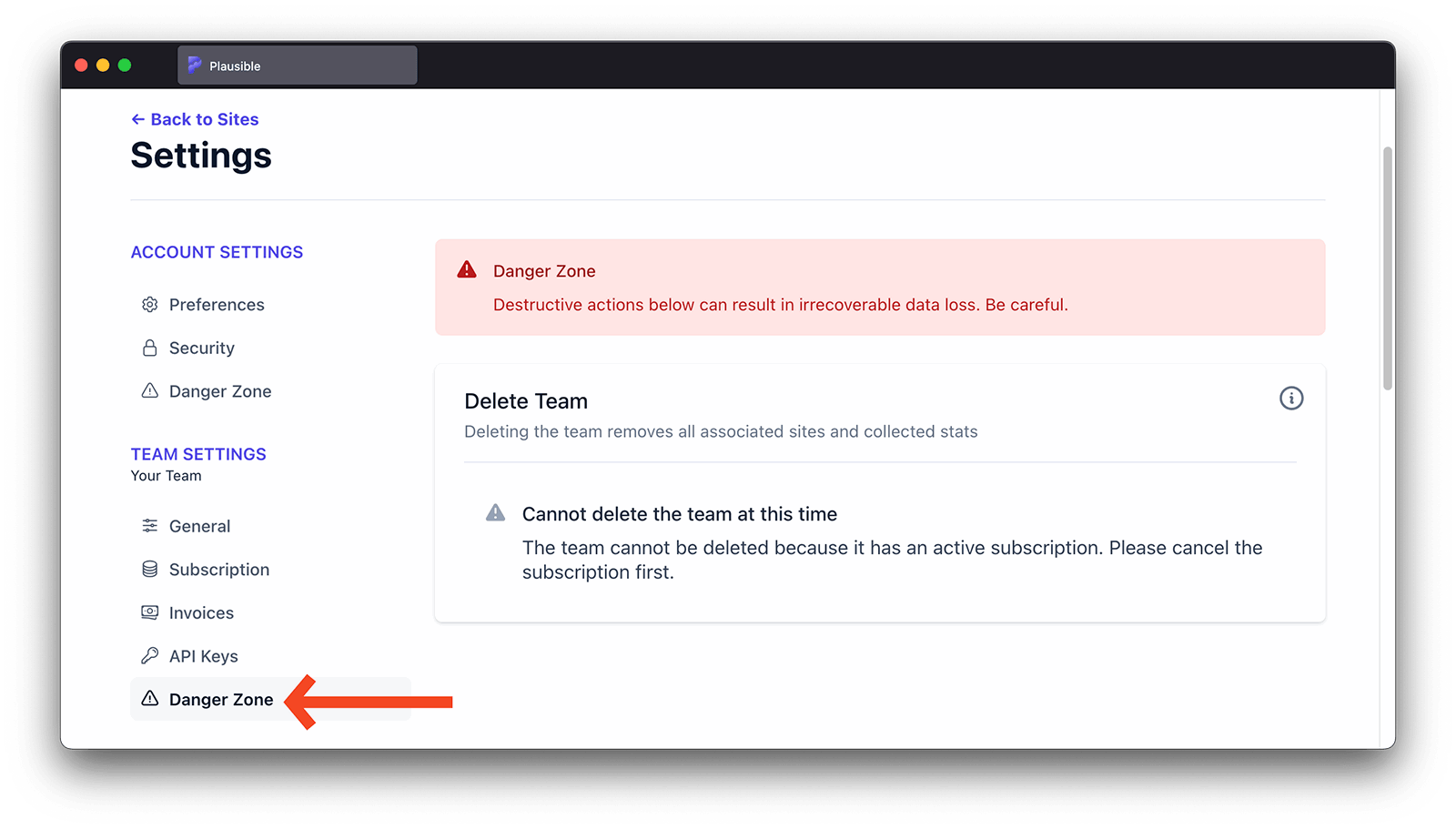
- To delete the team, go to the Danger zone option of the Team Settings
- Click on the Delete Team button. Note that deleting the team deletes all dashboards and collected stats of the sites that the team owns
Note that you need to be an owner to delete a team.
Working with external collaborators
You can also invite external collaborators as guests and give them access to specific sites only. This is useful when working with consultants, freelancers and other individuals who don't need access to all your sites. Here's how to invite guests.
Inviting external collaborators as guests to individual sites
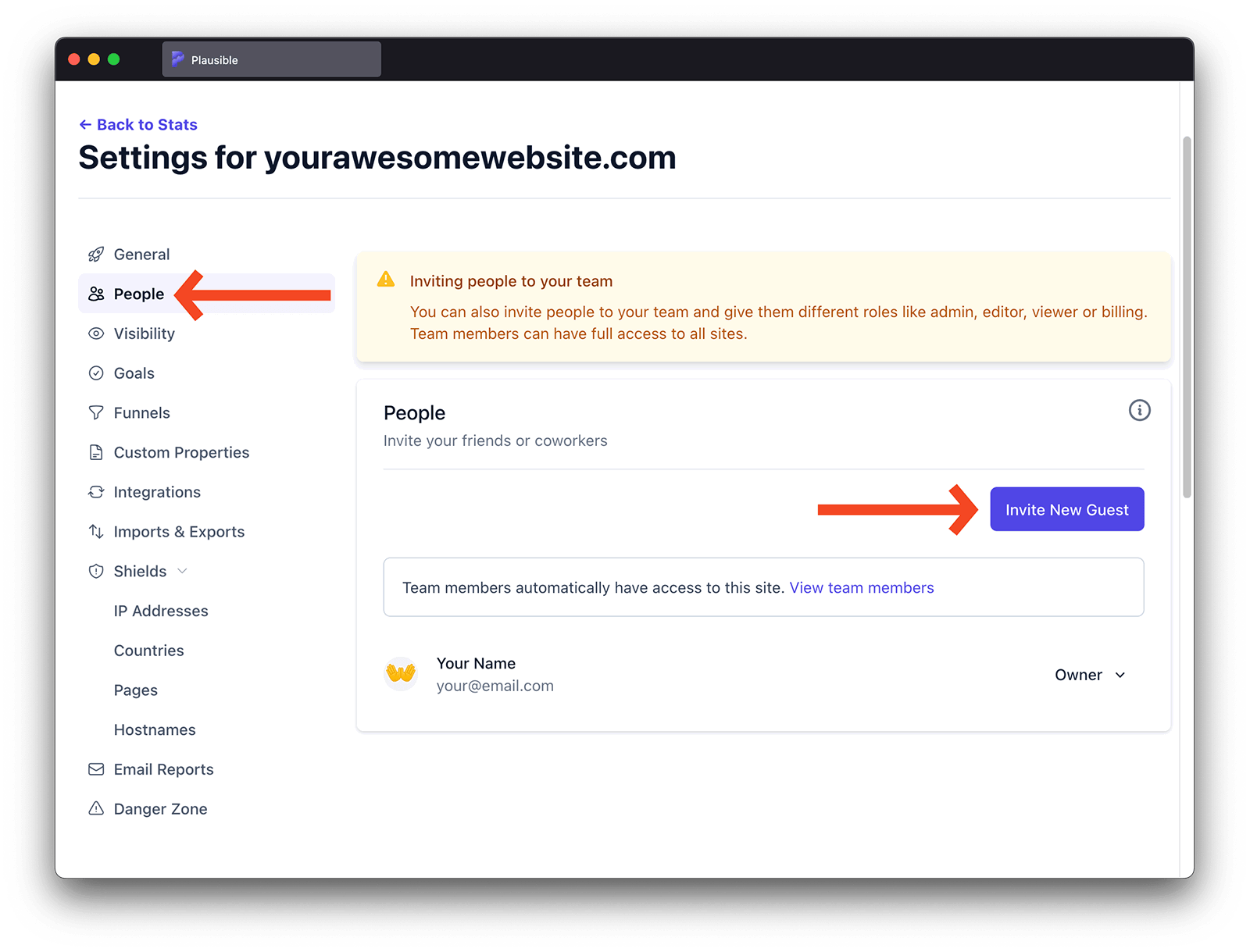
- Go into the site settings of the website you'd like to invite guests to
- Click on the People section on the left-hand sidebar
- Click on the Invite New Guest button
- Enter the email address of the person you'd like to invite. If you invite a new person to Plausible, they will need to register for a Plausible account with the exact email address that you invited
- Assign the role for the invited user. You can choose between two different roles:
- Guest Editor gets access to the stats dashboard and can manage the site settings
- Guest Viewer gets access to the stats dashboard only
- Click on the Invite button. We will email the invited person to notify them about your invitation. They will need to register for a Plausible account with the email address that was invited (or log in to their existing Plausible account registered with that email address) and accept your invitation. All invitations expire after 48 hours
Our private and secure shared links are a great way to share a particular dashboard quickly
Adjusting the guest roles
You can change the guest role at any time:
- Go into the site settings of the website you'd like to modify the roles for
- Click on the People section on the left-hand sidebar. That's where you can get an overview of the current guests and their existing roles
- Click on the current role next to the name of the person you'd like to change the role for
- Choose a new role for the user
That's it. The guest now has a different role.
Note that you need to be an owner or an admin of the team that owns the site to change guest roles.
Removing a guest from an individual site
You can remove a guest from having access to a site at any time:
- Go into the site settings of the website you'd like to remove a guest for
- Click on the People section on the left-hand sidebar
- Click on the current role next to the name of the person you'd like to remove
- Click Remove member
That's it. The guest has now been removed from the specific site.
Note that you need to be an owner or an admin of the team that owns the site to remove a guest.
How the team member limit is counted
The team member limit includes both full team members and guests who can log in to individual sites. It is based on unique email addresses, not the number of roles or sites.
The following count toward the limit:
- Team members
- Guest Viewers and Guest Editors
- Pending invitations to join the team or an individual site
The same person counts once even if they are a member of the team and a guest on multiple sites.
The following do not count toward the limit:
- Email report recipients
- People who view a shared link or an embedded dashboard based on a shared link
Email report recipients and shared-link viewers do not get team or site login access. If they are also invited as a team member or site guest, they count from the invitation. See pricing and subscription plans for the limits included with each plan.